
Samsung One UI 8.5 Beta Released: Your Complete Guide to Installation
Samsung just pushed the button on the One UI 8.5 beta. If you’re holding a Galaxy S25 and itching to see what Android 16 QPR2 brings to the table, the gates are officially open.
But let's be real: installing unfinished software is a great way to ruin your weekend if you aren't careful. While the allure of new features is strong, betas are buggy by definition. As your guide, I'm going to walk you through the eligibility check, the mandatory safety prep (seriously, don't skip it), and the exact steps to get One UI 8.5 running on your device today without turning your phone into a paperweight.
Step 1: Check Your Eligibility
Samsung is rolling this out in waves, so let's verify you can actually get in before you start digging through menus. Currently, the program is locked to specific hardware and geography.
- Galaxy S25 Series: The beta is live for the entire lineup, including the S25 Ultra.
-
United States
-
United Kingdom
-
Germany
-
Korea
-
India
-
Poland
Step 2: Critical Preparation (The "Don't Brick Your Phone" Phase)
The software is unstable. That’s the whole point. You might face random reboots, banking apps that refuse to open because they don't recognize the OS security patch yet, or battery life that vanishes in three hours.
Before you install, you need an escape plan:
-
Back Up Everything: Don't just rely on the cloud. Plug your phone into a PC and run a full backup via Samsung Smart Switch. If the beta corrupts your storage (rare, but it happens), this local backup is the only way to restore your phone exactly as it was.
-
Update Your Apps: Hit the Galaxy Store and Google Play Store and update everything. Old apps on a new OS kernel are a recipe for crash loops.
-
Charge Up: Get your battery to at least 80%. If your phone dies during the partition rewrite, you aren't just losing data; you're potentially hard-bricking the motherboard.
Step 3: Registration via Samsung Members
You can’t force this update via the system settings until your IMEI is whitelisted. You have to ask for permission first.
-
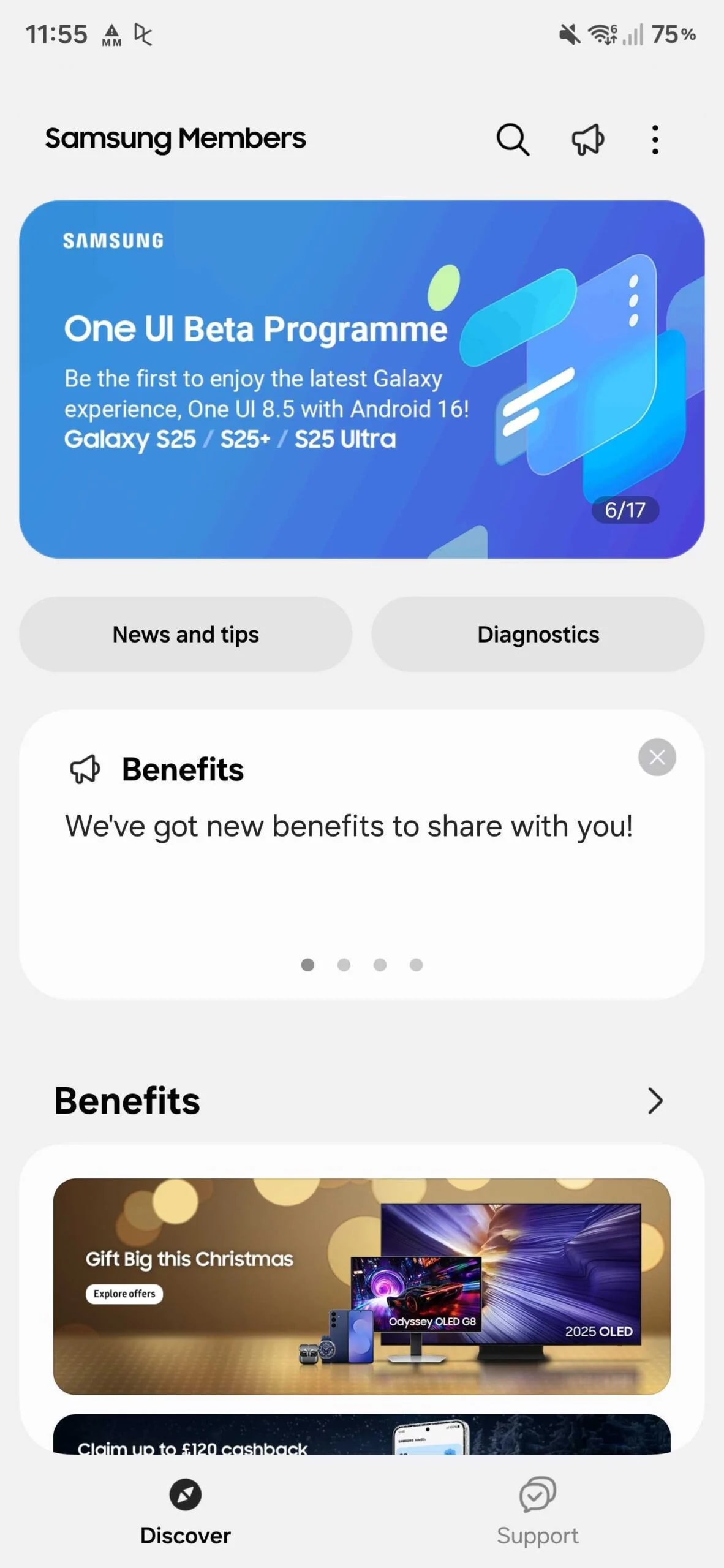
Open Samsung Members: Launch the app (download it if you deleted it).
-
Log In: Make sure you're signed into your primary Samsung Account.
-
Find the Banner: Look for the "One UI Beta Program" banner. It’s usually slapped right at the top of the main carousel or hidden under the "Notices" bell icon.
-
Enroll: Tap the banner, scroll through the liability waiver (which basically says "not our fault if your alarm clock fails"), and hit Enroll.
Step 4: Downloading the Update
Once you've registered, the digital paperwork is done. Now your phone needs to actually pull the file from Samsung's servers.
-
Wait a Few Minutes: It’s not instant. Give the server about 10 minutes to register your device ID.
-
Go to Settings: Open the main system settings.
-
Find Software Update: Scroll to the bottom and tap Software update.
-
Check for Updates: Tap Download and install.
-
Install: You should see the "One UI 8.5 Beta" file populate. Hit Download, and once it's prepped, Install Now.
Your phone will take longer than usual to reboot. This is normal—it's optimizing the new Android runtime.
New Features & The Escape Hatch
So, why go through the trouble? One UI 8.5 isn't just a decimal point upgrade; it's built on the Android 16 QPR2 codebase. While Samsung is keeping some cards close to their chest, early builds suggest we are looking at:
-
Revamped Notification Panel: A denser, more distinct separation between quick toggles and notifications, borrowing heavily from recent design trends.
-
Predictive Back Gesture: Finally fully integrated across the system, giving you a preview of the previous screen before you commit to the swipe.
-
Lock Screen Widgets: Deeper widget support that doesn't require unlocking the device for interactions.
Good luck, and happy testing!